 English
 繁體中文
繁體中文
 Deutsch
 Français
 Español
 日本語
日本語
 Tiếng Việt
 Português
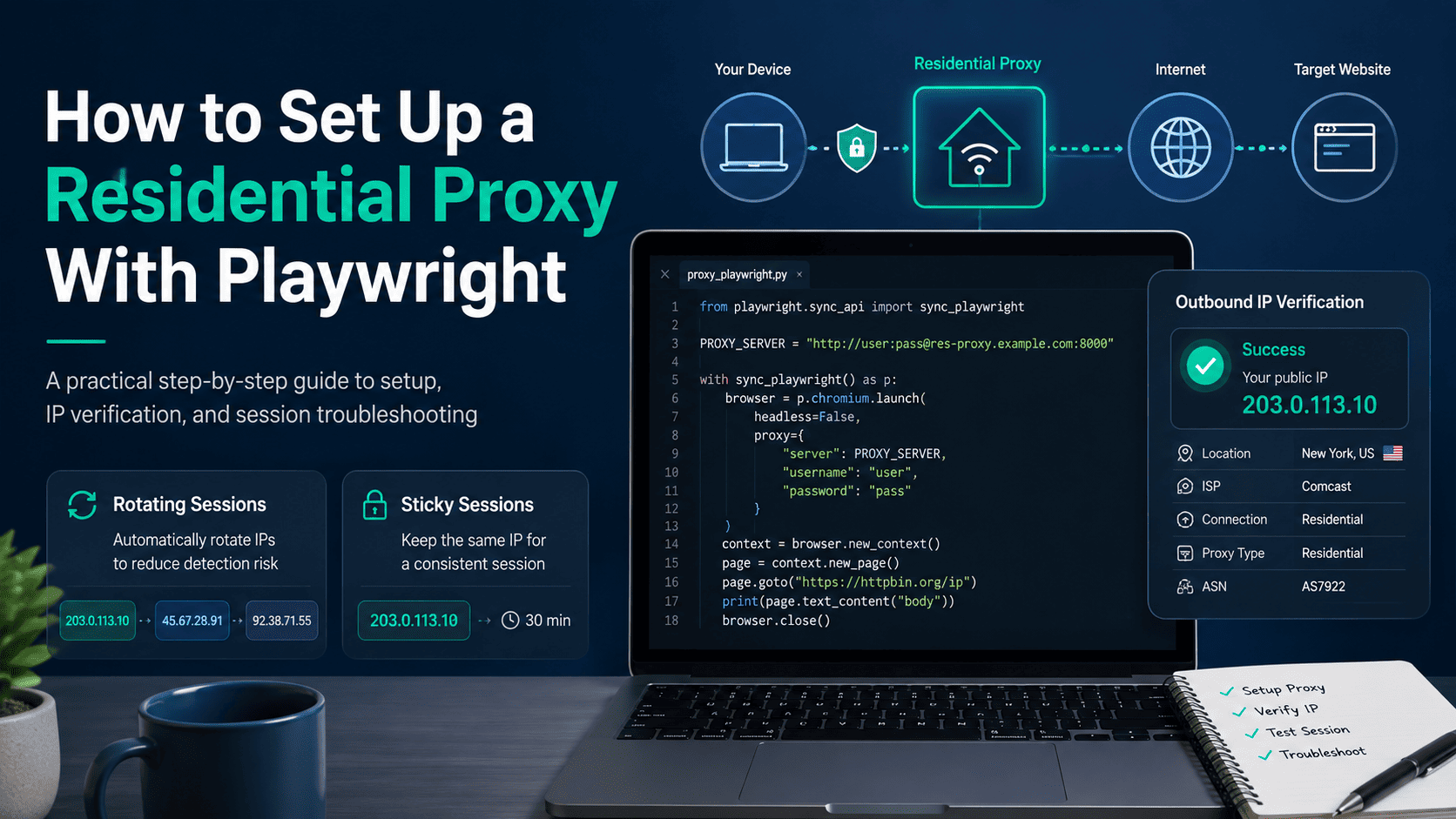
If you need Playwright to run through a residential proxy, the correct setup is to attach the proxy at browser launch with Playwright's proxy configuration, then verify the outbound IP before you use the browser against a real workflow. Playwright supports HTTP and SOCKS proxies in that launch configuration, and authenticated proxies can be passed with server, username, and password fields instead of trying to bolt proxy logic onto page-level code later.
That launch-level setup is the part most people miss. In Playwright, the proxy is applied to requests from the browser instance, so the fastest way to get a working result is to choose one clean path, wire it once, verify the exit IP, and only then worry about sticky sessions, rotation, or longer-lived browser profiles.
What do you need before you start?
You need four connection values from your provider: proxy host, proxy port, username, and password. If your provider offers country targeting, city targeting, sticky sessions, or rotating sessions, pull those controls from the provider dashboard or access details instead of guessing the format from blog posts or random examples.
You also need a working Playwright installation. The usual starting point is to install the Playwright package and then install the browser binaries before you test the proxy layer, because a broken browser install and a broken proxy config can look similar when all you see is "page didn't load."
Use this checklist before you write any code:
Python installed on the machine that will run Playwright.
Playwright package installed.
Browser binaries installed for Playwright.
A residential proxy endpoint with credentials.
One verification URL such as an IP-check endpoint so you can confirm the browser is actually leaving through the proxy.
This is also the right point to decide whether your workflow needs rotation or continuity. Playwright controls where the proxy is attached, but the actual rotating residential behavior usually depends on the provider-side endpoint or session settings, not on a special Playwright flag.
If you care about usage visibility, sub-user separation, or IP whitelisting while you debug, that should influence provider selection up front. Proxy001's residential product page publicly lists rotating residential support, real-time usage and performance monitoring, sub-user management, and IP whitelisting, which are all useful when you move from a local test to a real team workflow.
How do you set up the proxy in Playwright?
The best default path is Playwright for Python with a launch-level proxy configuration. Playwright's BrowserType.launch() documentation explicitly supports a proxy object with server, optional username, optional password, and optional bypass fields, and the server field accepts either HTTP or SOCKS proxy URLs.
Step 1: Install Playwright
Install Playwright first, then install the browser runtime it will use.
pip install playwright
playwright install
If you skip the second command on a new machine, you can waste time debugging a proxy issue that is really just a missing browser runtime.
Step 2: Store the proxy credentials safely
Don't hardcode proxy credentials directly into a script you plan to commit. A simple environment-variable setup is enough for a first working version, and it keeps the code reusable across local testing, CI, and shared environments.
On macOS or Linux:
export PROXY_SERVER="http://YOUR_PROXY_HOST:YOUR_PROXY_PORT"
export PROXY_USERNAME="YOUR_USERNAME"
export PROXY_PASSWORD="YOUR_PASSWORD"
On Windows PowerShell:
$env:PROXY_SERVER="http://YOUR_PROXY_HOST:YOUR_PROXY_PORT"
$env:PROXY_USERNAME="YOUR_USERNAME"
$env:PROXY_PASSWORD="YOUR_PASSWORD"
Use the exact host, port, username, and password values from your provider's dashboard or access details page. If your provider issues a SOCKS endpoint instead of HTTP, switch the scheme in PROXY_SERVER to socks5:// because Playwright supports both formats in the proxy server field.
Step 3: Launch Chromium with the residential proxy
This is the minimum working Playwright Python script for an authenticated residential proxy.
import os
from playwright.sync_api import sync_playwright

PROXY_SERVER = os.environ["PROXY_SERVER"]
PROXY_USERNAME = os.environ["PROXY_USERNAME"]
PROXY_PASSWORD = os.environ["PROXY_PASSWORD"]

VERIFY_URL = "https://httpbin.org/ip"

with sync_playwright() as p:
    browser = p.chromium.launch(
        headless=True,
        proxy={
            "server": PROXY_SERVER,
            "username": PROXY_USERNAME,
            "password": PROXY_PASSWORD,
        },
    )

    page = browser.new_page()
    page.goto(VERIFY_URL, wait_until="domcontentloaded")
    print(page.text_content("body"))

    browser.close()
This works because Playwright applies the proxy at browser launch, not as an afterthought on the page object. If your proxy does not require authentication, remove the username and password fields and keep only the server value in the proxy object.
The expected result is simple: the printed body should show a public IP that belongs to the proxy route rather than your machine's direct outbound IP. If the script loads successfully but the IP is still your own, the browser is not actually using the proxy and you should troubleshoot the proxy config before doing anything else.
Step 4: Test the real target only after the IP check passes
Once the verification page shows the proxy IP, replace the verification URL with your actual QA, validation, or authorized data workflow. That order matters because it separates two very different problems: "Playwright is not using the proxy correctly" and "the target workflow behaves differently through the proxy."
A minimal next step looks like this:
TARGET_URL = "https://example.com"

with sync_playwright() as p:
    browser = p.chromium.launch(
        headless=True,
        proxy={
            "server": PROXY_SERVER,
            "username": PROXY_USERNAME,
            "password": PROXY_PASSWORD,
        },
    )

    page = browser.new_page()
    page.goto(TARGET_URL, wait_until="domcontentloaded")
    print(page.title())

    browser.close()
At this stage, keep the rest of the browser config plain. Don't add custom browser flags, extra headers, or experimental workarounds until the basic proxy path is proven, because Playwright warns that custom browser arguments can break expected functionality.
How do you handle sticky sessions, rotation, and longer-lived profiles?
The first thing to understand is that rotation is usually controlled by the proxy provider, not by a Playwright method that magically rotates IPs for you. Playwright gives you the browser-level attachment point; the provider decides whether that endpoint rotates automatically, stays sticky for a session window, or changes when you pass a new session token or endpoint variant.
If your workflow is stateless, rotating residential proxies are usually the better fit because continuity is unnecessary and the provider can change exits according to its routing policy. If your workflow is stateful, such as multi-step QA or a login-dependent validation flow, keep the same browser instance alive for that run and use the provider's sticky-session settings so the route stays consistent for the part of the workflow that needs continuity.
For browser state across runs, switch from launch() to launch_persistent_context() and use a dedicated automation profile directory. Playwright's docs say the user data directory stores browser session data such as cookies and local storage, and they warn against pointing automation at the default Chrome user profile because that can cause pages not to load or the browser to exit unexpectedly.
A minimal persistent-context pattern looks like this:
import os
from playwright.sync_api import sync_playwright

PROXY_SERVER = os.environ["PROXY_SERVER"]
PROXY_USERNAME = os.environ["PROXY_USERNAME"]
PROXY_PASSWORD = os.environ["PROXY_PASSWORD"]

with sync_playwright() as p:
    context = p.chromium.launch_persistent_context(
        user_data_dir="./pw-profile",
        headless=True,
        proxy={
            "server": PROXY_SERVER,
            "username": PROXY_USERNAME,
            "password": PROXY_PASSWORD,
        },
    )

    page = context.new_page()
    page.goto("https://httpbin.org/ip", wait_until="domcontentloaded")
    print(page.text_content("body"))

    context.close()
Use this version only when you actually need persistent cookies or local storage. For a basic residential proxy setup, the non-persistent launch() path is cleaner and easier to debug.
How do you verify that the setup is correct?
A correct setup is more than "the browser opened." The proxy is working only if the browser exits through the expected IP, the geography matches the route you bought, and the session behavior matches the provider policy you intended to use.
Use this verification sequence:
Launch Playwright with the proxy and open an IP-check page.
Confirm the returned public IP is not your machine's direct IP.
Repeat the same test in the same browser run and note whether the IP stays stable or changes.
Relaunch the browser and repeat the test again to see whether the provider treats the route as sticky or rotating across sessions.
Here's how to interpret the result:
Same IP across repeated checks in one flow can be correct if you are using a sticky route or if the provider holds the same session for that connection window.
Different IPs across fresh runs can be correct if the provider endpoint is configured to rotate residential exits.
A location mismatch, wrong ASN type, or direct-machine IP result means you should stop and fix the setup before you use it in production validation.
The minimum success criteria are straightforward:
The browser launches without auth errors.
The verification page returns a proxied public IP.
The observed session behavior matches the provider-side configuration for sticky or rotating use.
What usually breaks, and how do you fix it?
Most failures come from configuration, not from Playwright itself. The good news is that the first few failure modes are predictable enough that you can usually fix them in minutes once you know where to look.
Symptom: the browser launches, but traffic still goes out directly
The most common cause is attaching the proxy in the wrong place or passing the wrong server value. In Playwright, the documented path is the proxy object at browser launch or persistent-context launch, so start there instead of trying to invent a page-level proxy workaround.
Fix: move the proxy into chromium.launch(..., proxy={...}) or launch_persistent_context(..., proxy={...}), then rerun the IP check before testing anything else.
Symptom: authentication fails
The usual causes are wrong credentials, wrong host or port, or the wrong scheme in the server value. If the provider gave you an HTTP endpoint, use http://host:port; if the provider gave you a SOCKS endpoint, use socks5://host:port because Playwright supports both formats in server.
Fix: re-copy the credentials from the provider dashboard or access details page, confirm the server scheme matches the provider's endpoint type, and test again with a plain IP-check URL before you do anything more complicated.
Symptom: the IP does not rotate when you expected it to
That usually means the endpoint is sticky by design or you are reusing the same provider-side session path. Playwright itself is not the rotation engine, so changing pages inside the same browser does not automatically mean the provider will assign a new residential IP.
Fix: check the provider's session settings, sticky options, or endpoint rules, then compare repeated checks within the same run and across fresh runs.
Symptom: the browser becomes hard to debug after adding extra flags
Playwright explicitly warns that custom browser arguments can break functionality. If your base proxy setup works and the browser breaks only after you add extra Chromium flags, remove those flags and return to the minimal launch config first.
Fix: strip the script back to the smallest working version, confirm the proxy still works, and then reintroduce one change at a time.
Compliance note and CTA
Use residential proxies with Playwright for approved workflows such as regional QA, ad verification, localized content validation, fraud analysis, and authorized data-quality testing. Keep request volume and concurrency within the target service's terms, contract, or approved testing scope, and treat the proxy as network routing infrastructure, not as a shortcut for bypassing somebody else's access controls.
If you want a provider whose public product page already exposes the operational controls that matter after setup, Proxy001 is a strong option because it publicly lists rotating residential support, real-time usage and performance monitoring, sub-user management, IP whitelisting, global coverage, 99.5% average success rates, and 99.9% IP availability. That combination is useful when you need to validate one Playwright flow, watch its usage, separate test traffic by account, and then scale carefully instead of guessing what the proxy layer is doing.