 English
 繁體中文
繁體中文
 Deutsch
 Français
 Español
 日本語
日本語
 Tiếng Việt
 Português
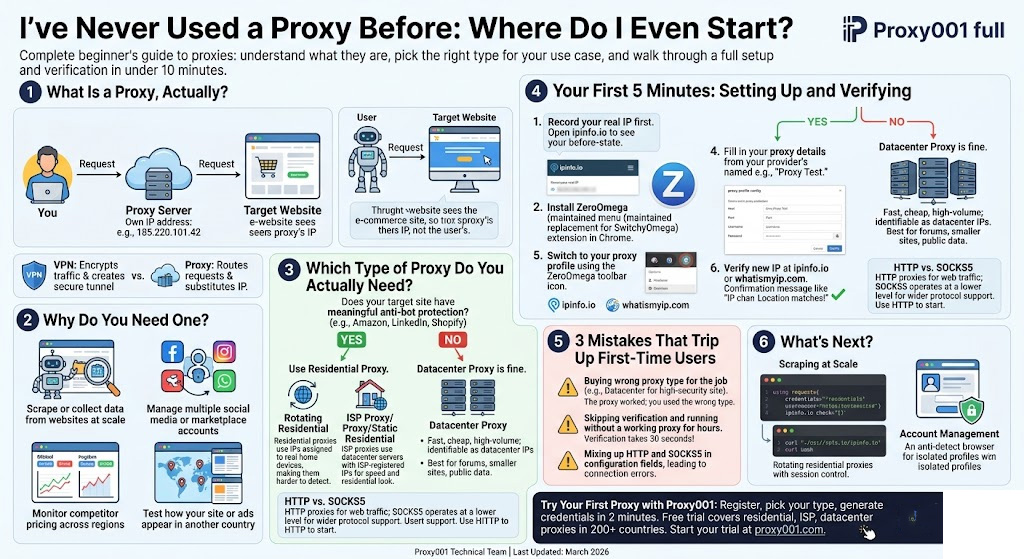
You've been told to "just grab a proxy" for a project. Maybe you need to pull pricing data from a few hundred product pages, or you're managing more than one social account, or you want to see how a website looks to users in Germany. Someone on a forum made it sound easy. Now you're looking at a dashboard full of terminology you don't recognize and wondering what any of it means.
This guide won't make you wade through theory before getting to the point. By the end of it, you'll know what a proxy does, which type you actually need, how to get one, and how to confirm it's working — without needing to read anything else.
What Is a Proxy, Actually?
A proxy server sits between your device and the website you're trying to reach. When you send a request through a proxy, that request goes to the proxy first. The proxy then forwards it to the destination using its own IP address — so from the website's perspective, the traffic is coming from the proxy, not from you.
Here's a concrete way to think about it: imagine you ask a friend who lives in another city to order something from a local restaurant that only delivers nearby. The restaurant sees your friend's address, not yours. The proxy does the same thing — it's the address the website actually sees.
What the proxy doesn't do (and this matters): it doesn't encrypt your traffic. That's a VPN's job. A proxy routes your requests and substitutes your IP; it doesn't create a secure tunnel. For most data collection, geo-testing, and account management tasks, that's perfectly fine. If you need encryption on top, that's a separate conversation.
Why Would You Need One?
The table below maps five common tasks to whether a proxy actually helps — including two where it doesn't fully deliver on its own:
| What you're trying to do | Does a proxy help? |
|---|---|
| Scrape or collect data from websites at scale | ✅ Core use case |
| Manage multiple social media or marketplace accounts | ✅ Common use case |
| Monitor competitor pricing across regions | ✅ Common use case |
| Test how your site or ads appear in another country | ✅ Yes |
| Route all personal traffic through a private IP | ⚠️ A proxy rotates your visible IP address, but doesn't encrypt traffic or prevent browser fingerprinting — it's not a complete privacy solution |
| Stream geo-restricted content on personal accounts | ⚠️ Depends on platform terms of service — check before you do this |
If your use case is in the first four rows, you're in the right place.
Which Type of Proxy Do You Actually Need?
This is where most first-time buyers go wrong — not because the answer is complicated, but because most explanations list the types without helping you choose. Here's the actual decision logic.
The three main types, in plain terms:
Residential proxies use IP addresses assigned to real home devices by internet service providers. When you send a request through a residential proxy, it looks to the target website exactly like a regular person browsing from their living room. That's why they're much harder to detect or block compared to other proxy types.
Datacenter proxies come from servers hosted in data centers — they're fast, cheap, and high-volume, but their IP ranges are registered to hosting companies, not residential ISPs. Sites that care about bot detection can identify datacenter IPs with reasonable reliability.
ISP proxies are sometimes confused with static residential proxies, but they're distinct: ISP proxies use datacenter servers with ISP-registered IP addresses, giving them a residential-looking footprint while maintaining datacenter-level speed and stability. Static residential proxies route through actual home devices, which means a higher authenticity ceiling at a higher cost. For most fixed-IP use cases, ISP proxies cover the need.
The decision tree:
Does your target site have meaningful anti-bot protection?
(Amazon, LinkedIn, Shopify, travel sites, most major e-commerce)
YES → Use Residential Proxy
│
├─ Need a different IP for every request? → Rotating Residential
└─ Need the same IP across a session? → ISP Proxy (faster, more
cost-effective for most
fixed-IP needs)
Static Residential (if ISP-
registered IPs aren't passing
— uncommon for beginners)
NO → Datacenter Proxy is fine
(forums, smaller sites, public data endpoints, internal testing)
If you're unsure, assume "yes" — residential is more forgiving when you get it wrong. Buying a datacenter proxy for a site that blocks them and then switching is more expensive than starting with residential.
HTTP vs. SOCKS5 — which protocol?
HTTP proxies are designed specifically for web traffic. They understand HTTP and HTTPS requests, which means they work with most browsers and scraping tools with zero extra configuration. If you're doing web scraping or browser-based tasks, HTTP is the default choice.
SOCKS5 operates at a lower level — it proxies TCP connections without inspecting the actual content. That makes it protocol-agnostic: it can handle FTP, SMTP, or anything else that runs over TCP, not just web requests. The tradeoff is that your client software needs to explicitly support SOCKS5. Many scraping frameworks (Scrapy, Playwright, Puppeteer) do, and if your tool supports both, SOCKS5 is the more flexible option.
Starting out? Use HTTP. Switch to SOCKS5 when your tool specifically asks for it, or when you're doing non-web traffic.
How Do You Actually Get a Proxy?
Most guides skip this part — they jump straight to "enter your proxy address" without explaining where that address comes from or what it looks like when you receive it.
When you sign up with a proxy provider and generate a proxy, you get a set of credentials. These typically look like this:
Host: gate.yourprovider.com (or a raw IP like 185.220.101.42)
Port: 8080 (common HTTP port; 1080 is typical for SOCKS5)
Username: your_username
Password: your_password
Some providers support IP whitelisting instead of username/password authentication: you add your current IP address to an allowlist in the provider's dashboard, and then you don't need credentials at all — any request from your whitelisted IP is automatically authenticated.
You'll find all of this in your provider's dashboard after you create a proxy session or generate a proxy list. The format varies slightly — some providers give you a single endpoint with rotating IPs behind it; others give you a list of individual IPs. Either way, host + port + authentication is what you need to configure any tool.
If you want to get your hands on a proxy without committing to a plan upfront, Proxy001 offers a free trial that includes residential, ISP, and datacenter proxies across 200+ countries. The signup takes about two minutes. Once inside the dashboard, navigate to the proxy generation section — select your proxy type, target country, and session type, and your credentials (host, port, username, password) will appear on the same page. Copy them directly from there; don't retype them manually.
Your First 5 Minutes: Setting Up and Verifying
What you'll need before starting:
Your proxy credentials (host, port, username, password) from your provider's dashboard
Google Chrome or any Chromium-based browser (Edge, Brave)
A few minutes
Step 1 — Record your real IP first.
Open ipinfo.io in a tab before you configure anything. You'll see your current IP address and location. Write it down or leave the tab open. This is your before-state — you'll compare it against the after-state to confirm the proxy is working.
Step 2 — Install ZeroOmega.
The classic SwitchyOmega extension was removed from Chrome's Web Store following the Manifest V3 migration. The maintained replacement is ZeroOmega (also listed as "Proxy SwitchyOmega 3"). Search for it in the Chrome Web Store, add it, and pin it to your toolbar.
Step 3 — Create a proxy profile.
Click the ZeroOmega icon → Options → New Profile (left sidebar).
Give it a name (e.g., "Proxy Test")
Set the type to Proxy Profile
Click Create
Step 4 — Fill in your proxy details.
In the new profile:
Protocol: HTTP (or SOCKS5 if your provider gave you a SOCKS5 endpoint)
Server: paste your proxy host
Port: enter your proxy port number
If you're using username/password authentication (not IP whitelist), click the lock icon to the right of the server field and enter your username and password.
Click Apply changes.
Step 5 — Switch to your proxy.
Click the ZeroOmega icon in the toolbar → select the profile you just created. The icon will change to indicate the active proxy.
Step 6 — Verify.
Go back to ipinfo.io (or open whatismyip.com in the same tab). If the IP address shown is different from what you recorded in Step 1, your proxy is working. If the location also matches the country/region you configured, you're in good shape.
If it's not working:
The IP didn't change at all. The most common cause is that the proxy profile isn't actually selected — check that ZeroOmega shows your profile as active in the toolbar, not "Direct" mode. Second most common: if you're using IP whitelist authentication, your current IP may not be on the whitelist yet. Log into your provider's dashboard and add it.
Connection timeout or "proxy server is refusing connections." Double-check the port number. HTTP proxies typically use port 8080 or 3128; SOCKS5 commonly uses 1080. If the port is wrong, you'll see this error consistently. Verify against your provider's dashboard.
Authentication failure / 407 error. This means your username or password is being rejected. Re-copy the credentials from the dashboard — don't retype them manually, as it's easy to introduce a typo. Also check that the account is active and the trial hasn't expired.
A note on appropriate use: proxies are legitimate tools for a wide range of professional and research tasks. Most providers' terms of service — and most platforms' terms of service — prohibit using proxies for fraud, unauthorized access, or harassment. Staying within those boundaries isn't just good ethics; it's also what keeps your account and IP pool in good standing.
Even with a working setup, the three patterns below tend to show up once you start scaling or switch tasks — worth knowing now so they don't surprise you later.
3 Mistakes That Trip Up First-Time Proxy Users
We've seen all three of these catch out users who got the configuration exactly right. The third one in particular tends to surface after hours of troubleshooting, because the error message gives you no indication that the protocol is the problem.
1. Buying the wrong proxy type for the job — and blaming the proxy.
This is the most expensive mistake. A datacenter proxy hitting a site like LinkedIn or Shopify will get blocked almost immediately, not because the proxy is bad, but because those platforms actively flag datacenter IP ranges. The proxy worked exactly as designed — you just used a datacenter IP for a job that needed a residential one. If you find your proxies getting blocked consistently within seconds, type mismatch is the first thing to check, not the provider.
2. Skipping verification — and running without a working proxy for hours.
Setting up a proxy and then not verifying it with ipinfo.io is surprisingly common. The result: you run your scraper or tool for hours thinking you're routing through a proxy, then realize your real IP has been hitting the target the whole time. The verification step in the setup above takes 30 seconds and saves a lot of frustration.
3. Mixing up HTTP and SOCKS5 in configuration fields.
If you have a SOCKS5 proxy endpoint and you enter it into an HTTP proxy field in your tool, you'll get a connection error that's hard to diagnose because it doesn't look like a credential problem — the credentials are fine; the protocol is wrong. The reverse is also true. When something doesn't connect after you've triple-checked your credentials, verify that the protocol field in your client matches what the provider actually gave you. Your provider's dashboard usually labels the endpoint clearly: "HTTP endpoint" vs. "SOCKS5 endpoint."
What's Next After You've Got It Working?
Once the basic setup is running, where you go next depends on what you're actually building.
If you're scraping data at scale, the next concept you'll need is rotating residential proxies with session control. Most providers let you choose between a new IP on every request (maximum diversity) or a "sticky session" that keeps the same IP for a defined period — useful when a site requires you to stay authenticated across multiple pages. Look for session duration controls in your provider's documentation.
If you're managing multiple accounts, you'll want to pair your proxy with a browser that supports separate profiles (Multilogin, AdsPower, and Dolphin{anty} are the common choices in that space). Each account gets its own proxy and isolated browser fingerprint. Without the browser isolation layer, the proxy alone isn't sufficient.
If you're integrating proxies into Python scripts, most requests-based workflows are straightforward. Replace the placeholder values below with the credentials from your provider's dashboard:
import requests

PROXY_HOST = "your-proxy-host"   # from your provider's dashboard
PROXY_PORT = "8080"              # confirm port in your dashboard
PROXY_USER = "your_username"
PROXY_PASS = "your_password"

proxies = {
    "http":  f"http://{PROXY_USER}:{PROXY_PASS}@{PROXY_HOST}:{PROXY_PORT}",
    "https": f"http://{PROXY_USER}:{PROXY_PASS}@{PROXY_HOST}:{PROXY_PORT}",
}

response = requests.get("https://ipinfo.io/json", proxies=proxies)
print(response.json())
Run that and you'll see the proxy's IP in the response — same verification logic as the browser setup. From there, adding proxy rotation is a matter of cycling through a list of endpoints or using a single rotating gateway URL your provider supplies.
If you want to test from the command line first, curl makes it one line. Substitute your actual credentials and host from the dashboard:
curl --proxy http://your_username:your_password@your-proxy-host:8080 \
     https://ipinfo.io/json
The response will show the IP your request came from. Quick and clean for confirming a connection before you build anything around it.
Try Your First Proxy with Proxy001
If you haven't set up a proxy account yet, Proxy001 is a practical starting point — especially for first-timers. It covers residential, ISP, and datacenter proxies across 200+ countries, with both rotating and static options available. The free trial lets you test speed, connection reliability, and geo-targeting before you commit to a plan, which matters when you're still figuring out what your use case actually needs.
Setup follows the same pattern covered in this article: register, pick your proxy type, and the dashboard generates your credentials immediately after configuration. It also includes integration guides for Python, Scrapy, Puppeteer, and Selenium if you're ready to move beyond the browser-level test. Start your free trial at proxy001.com.